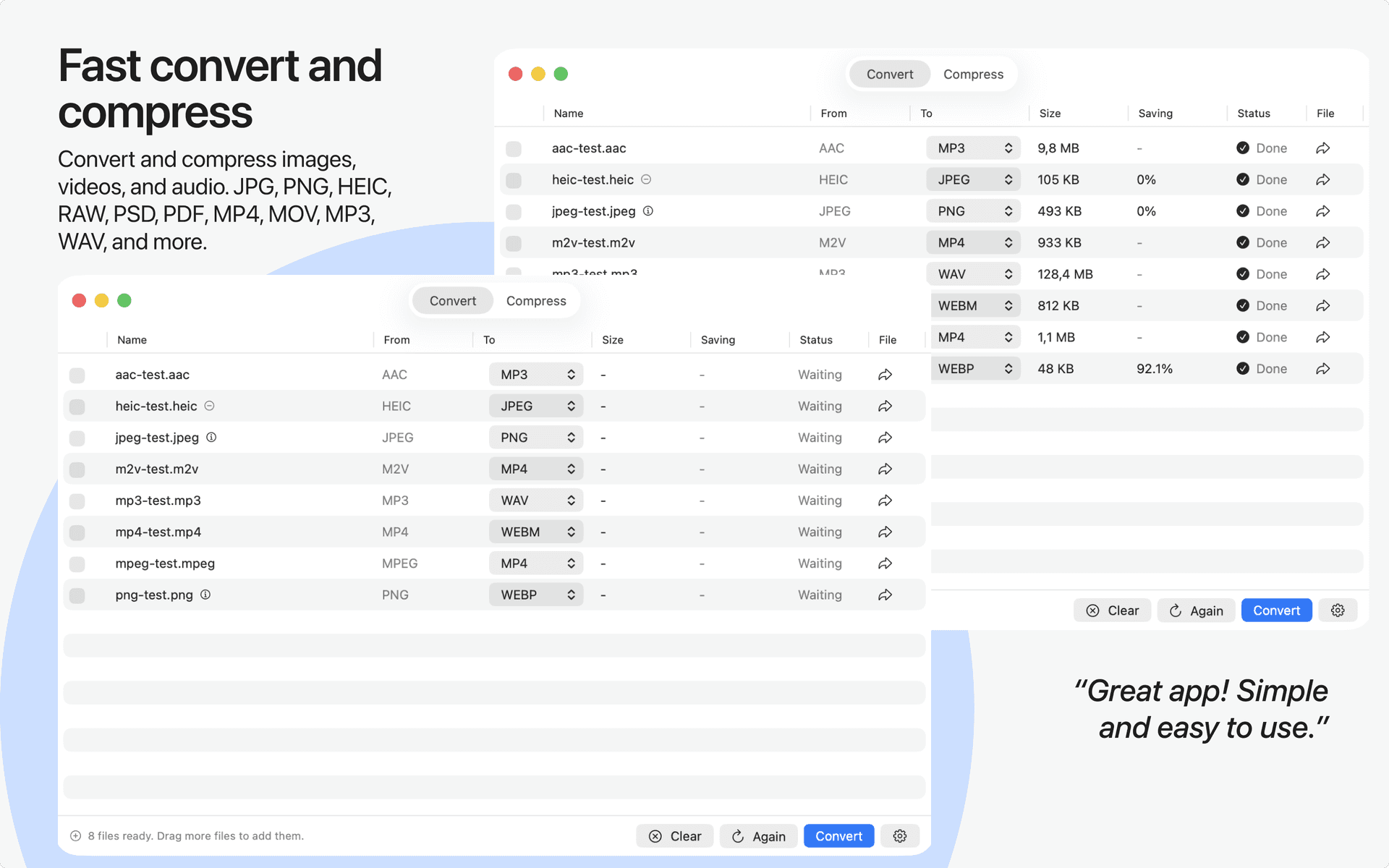
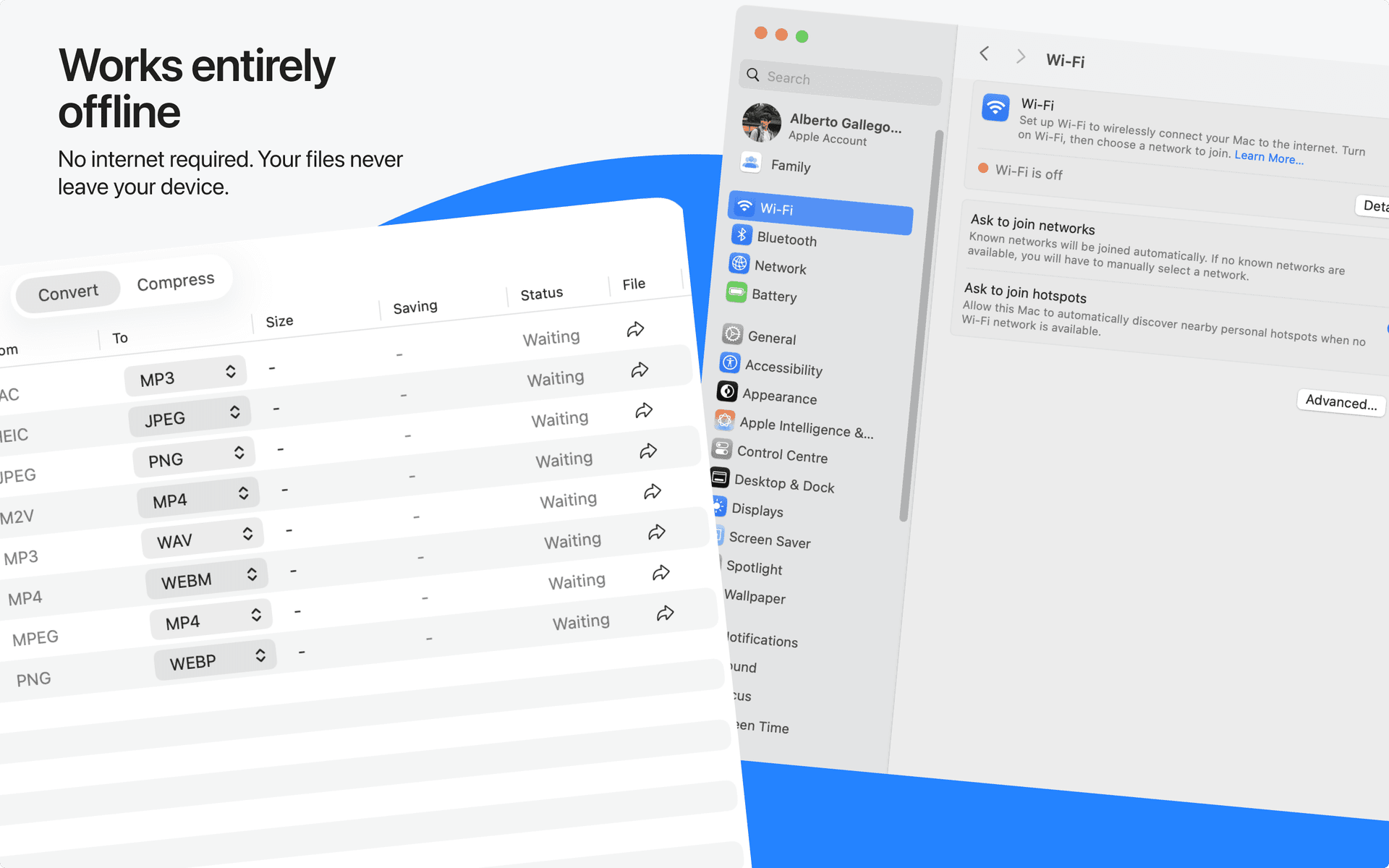
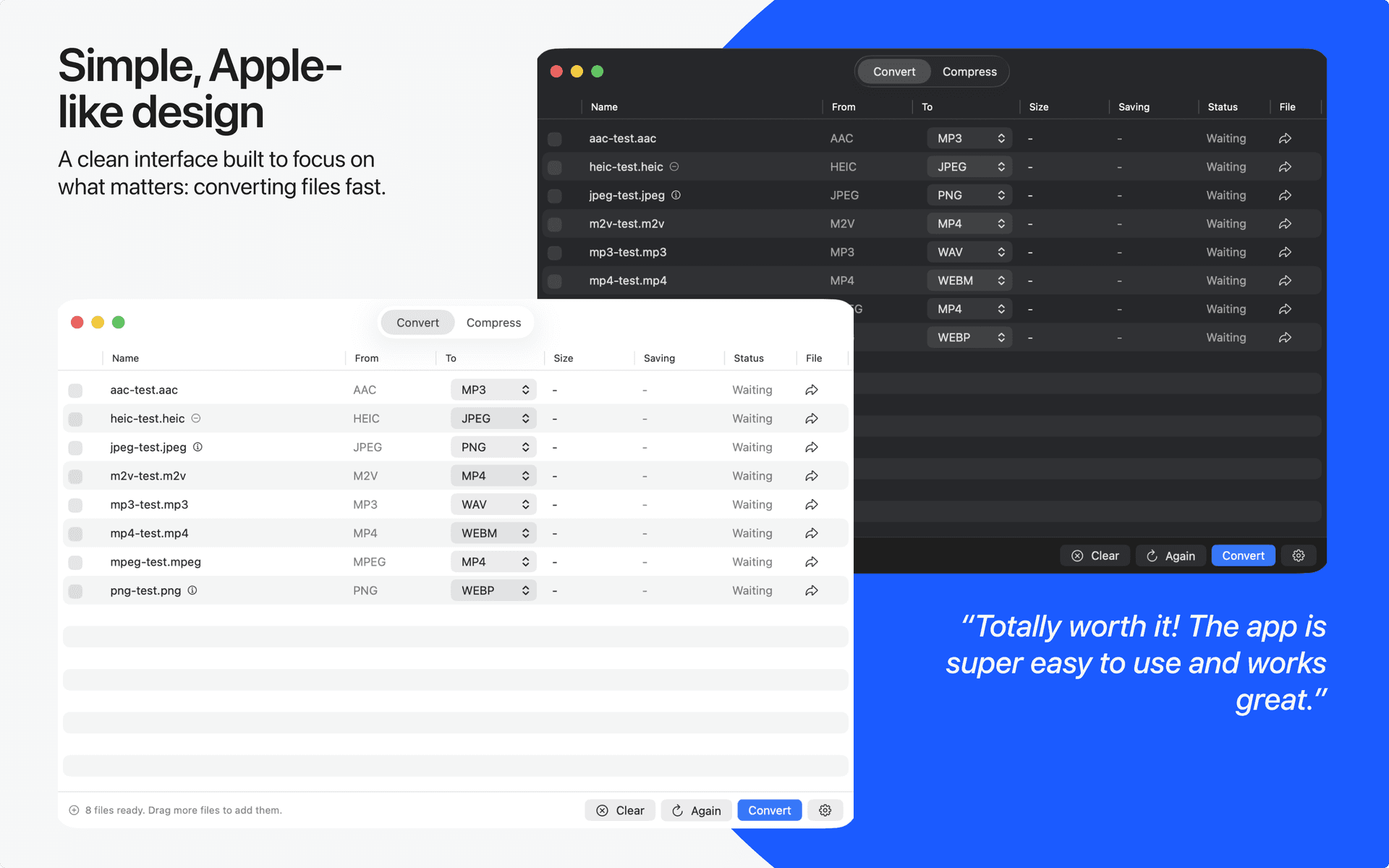
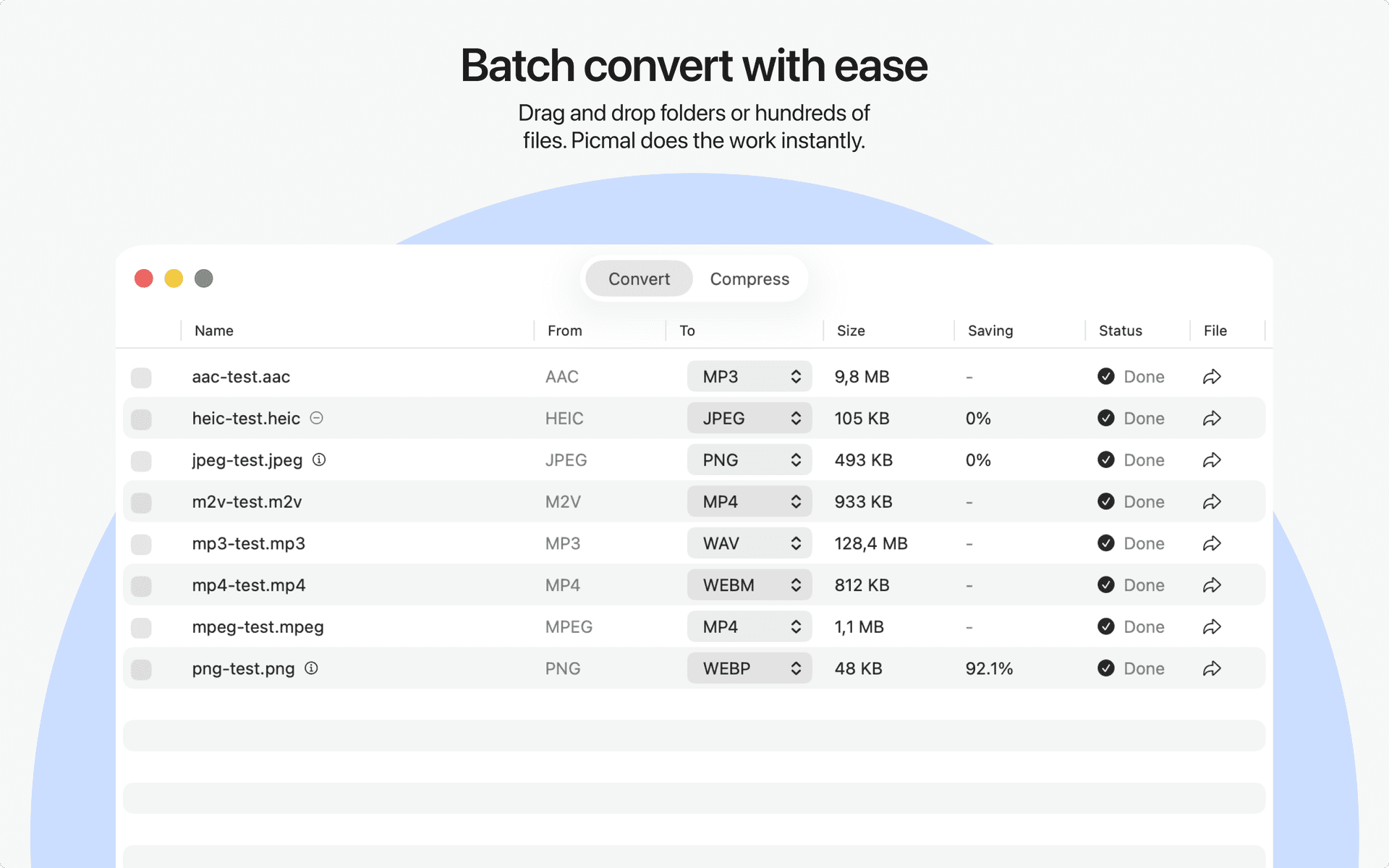
Convert and compress images, videos, and audio in bulk. Works offline, no account needed, nothing to subscribe to.
| Initial release | |
|---|---|
| Price | 15.99 |
| Platforms | Mac |
| Category | Utilities |
| Website | picmal.app |

Batch Compress & Resize Photos

Preview, Search & Extract

Motion Photos to Live Photos

Shrink, resize, free up space
Convert JPG, PNG, HEIF, TIFF

Capture, Edit & Convert Video
New Features • Transcribe turns audio and video into text, on your Mac. Drop in recordings, interviews or videos and get a TXT, SRT or VTT file next to each one, with nothing uploaded. Pick the language or let Picmal detect it, and add names and terms so it spells them right. Two speech models download only when you click: Fast (190 MB) and High Quality (574 MB, the default on Apple Silicon). A dropped download picks up where it left off, and Settings > Audio manages both. Also in `picmal-cli transcribe` and the Transcribe Audio and Video action in Shortcuts. • Turn a PDF into a document you can edit. Pick DOCX, RTF or TXT as a PDF's output. Picmal joins wrapped lines back into paragraphs, reads two-column pages one column at a time and reads scanned pages with text recognition on your Mac. Headings come out bold and larger; fonts, tables and images stay behind. Same in `picmal-cli convert --format docx`. • Crop a whole batch to an aspect ratio. In Crop, switch Options to Aspect Ratio, pick 9:16 or type your own, and every image and PDF page gets cut to the largest area of that shape. Keep the center or an edge, or let Smart keep the part that draws the eye. Same in `picmal-cli crop --ratio 9:16 --anchor smart` and the Crop Files action in Shortcuts. Improvements • Your first Convert starts the free trial. On a Mac that never started its 7-day trial, Convert, Compress or a first Quick Action from Finder starts it and runs. An ended trial still asks for a license, and Update all no longer needs one. • Video encoder trouble is handled, not fatal. When the hardware encoder refuses a video, Convert, Compress and `picmal-cli` finish it in software, Intel Macs included. A broken clip no longer gets encoded twice before failing, and a busy or stalled encoder says so instead of blaming the resolution. • Downloads keep working when YouTube changes. When a download fails because a site changed, Picmal gets the newest downloader and tries the link once more. It checks at most once a day, only inside Download Video, so you don't wait for a Picmal release. • Picmal tells you when a resize or trim wasn't applied. A PDF or SVG output keeps its size and borders, and the row now says so instead of passing without a word. • Remove Background has a Cancel button. • GIF level works the same in Convert as in Compress. Higher means smaller files with fewer colors. If you converted to GIF at a high level, lower it to keep more colors. Bug Fixes • Fewer crashes and hangs. A damaged HEIC dropped on Crop, Images to PDF or App Icon could take the app down; those tools now decode HEIC in a separate process, like Convert. Video converts no longer hang now and then on a settings save. Cancel now stops a video convert mid-remux. • HEIC output is a real HEIC, with its watermark and without your metadata. .ai and some .psd files converted to HEIC were PNGs with a .heic name, a failed first watermark pass left no watermark, and Remove Metadata kept location and camera details on some HEIC conversions. • Quality lands where you set it, per format. HEIC, AVIF, JPEG 2000, JPEG XL and other newer formats used the JPEG quality in Convert with compression and Convert & Compress from the clipboard, and 85 instead of 80 on a Quick Action that launched Picmal. A quality of 57 encoded at 56. • Compress works on more files. It now shrinks videos that were already small, compresses MPEG, VOB, M2V, OGV, MJPEG and raw HEVC with their own codecs (and follows your quality for them), reads JNG files, and resizes .jpe, .icb, .vst and .j2k. Remove Metadata no longer makes an already-optimized file bigger. • AV1 presets write AV1. A video preset set to AV1 quietly wrote H.264 into the MP4. It now writes AV1, which IINA and VLC play everywhere and QuickTime plays on Macs that decode AV1. MOV still falls back to H.264. • Video settings do what they say. A same-format convert with a quality or codec now re-encodes, and its Quality column says Original when it doesn't. VP9 follows your CRF, and switching Advanced off really turns it off. Chapters stay when you remove metadata, in Convert and watched folders. Combine Videos re-encodes mismatched clips at the first clip's frame rate, not 30 fps. Software retries keep Remove Metadata and the progress bar. • Watched folders follow your settings. They used 85% whatever you'd set, so videos may now come out larger, the same as from the Convert window. A single-page PDF lands under its own name instead of `name-page-0.png`. Converting audio and video now uses the folder's presets, a compress that doesn't shrink a file hands back the original instead of a slightly bigger copy, and a video to GIF takes the same fast path as the window. • Your metadata survives every way in. Watched folders and the Convert Files Shortcut used to drop a photo's colour profile and EXIF when converting, and Compress dropped a PNG's own title, comment and DPI under Keep All metadata. They now keep what the window keeps. A compress that can't shrink a file under Keep All hands back the original byte for byte. • Cleaner output files. BMPs open in Preview again, conversions to AVIF, BMP, GIF, JPEG 2000 or TGA no longer leave an empty `..picmal_meta_` file behind, setting a DPI no longer rewrites PDF output, and a rotated PDF page converts to an image whole and the right way up. Remove Background keeps your old image until the new one is saved. • The window stays where you left it. A Quick Action or scheduled compress no longer switches it to Compress, dropping a folder on the menu bar icon finds the same files as the window, and the sidebar update notice is one row. • Shortcuts behave like the app. Compress adds your copyright, never grows audio or video, keeps photo details with Remove Metadata off, removes them from HEIC with it on, keeps wide-gamut colours, and follows your preset for .jfif and .eps. Custom Quality 1 means 1%, not 100%. Remove Background and Split PDF name files like the originals, and Remove Background tells you which files it skipped. Compress Files now encodes audio and video with the whole preset, codec included, so Balanced gives the same file as the app. Convert Files and Convert & Compress from the clipboard render PDF pages at the app's 150 dpi instead of 300. • Compress when converting now compresses. Converting with "Compress when converting" on skipped the Compress engines: a JPEG to PNG with Web optimized came out at 28.9 MB instead of the 3.8 MB a Compress gives. It now runs the same steps as Convert followed by Compress, and gives the same image. • Set DPI works on Compress. The DPI you set was written, then overwritten when the photo's own metadata went back on. Compressed and converted images now carry your DPI. • Colour profiles hold. Compress with the CMYK or Grayscale profile now writes CMYK or grayscale, Convert to CMYK no longer comes out RGB, and compressing a print-ready CMYK JPEG keeps it CMYK. • Watched folders keep your photo's metadata. With Remove metadata off, a folder's Compress dropped the location, date and camera details. It now keeps what the window keeps. • `picmal-cli compress` takes the same options as the app's Compress. New `--resize`, `--color-space`, `--dpi` and `--watermark` flags, and `--color-space p3` and `adobergb` now write those profiles instead of sRGB. • Picmal warns about cut-off images. A JPEG, PNG, GIF or WebP that ends early (an interrupted download or copy) still converts, and its row now says the file is damaged and that the missing part comes out gray. `picmal-cli` prints the same warning, and `picmal-cli convert` now also reports a resize it could not apply. • The Quality column says why there's no preset. An image converted to another format without "Compress when converting" shows "No compression" instead of "Off". Click it to turn the setting on. • Clipboard optimization makes the same file as the window. Compress and Convert from the clipboard now run the window's own image encode, so a copied image keeps the metadata the window keeps, a compress that can't shrink it says so, and Convert & Compress gets the window's compress pass. • `picmal-cli` makes the same file as the app. Convert and compress now run the app's own audio and video encode, starting from the Balanced presets a new install uses: an MP4 to AVI comes out at 465 KB instead of 2.4 MB, and a WAV to MP3 at the app's 192 kb/s instead of ffmpeg's default. WebP, AVIF and HEIC convert at the app's 90%, and a compressed GIF keeps its colours. `--quality` works for audio and every video codec, and on a convert it re-encodes even when a copy would do. JPEG, GIF and JPEG XL use the app's encoder settings, about 27% smaller on a test JPEG. `--quality 1` on a PDF means 1%. For PNGs `--quality` is flipped: 100 is now the lightest compression, as everywhere else, so flip the number in your scripts. • `picmal-cli` converts and compresses images exactly like the app. It now runs the app's own image steps, so the same settings give the same file from the window, the CLI, Raycast, the Shortcuts and watched folders. `--resize` reads the app's sizes (`50%`, `1920x`, `1920x1080>`, `500kB`), and a watermark sits 20 px in from its corner, as in the app. • `picmal-cli` writes what you asked for. A PDF page converts to an image at full size, not as a small picture on a wide white margin. Audio presets encode like the app, a video to GIF takes seconds instead of minutes, SVGs compress, resizes survive when the file grows, and an .m4a is never a WAV inside. Formats Picmal only reads (.icns, video to a still image) stop with `unsupported_format` (exit 5) instead of writing the wrong thing, and a file it couldn't shrink is never lost. Like the window, it doesn't compress PPM or PSB files (there's nothing in them to compress), and watched folders and Compress Files now say so too. • `picmal-cli` batches are easier to script. Every tool command carries on past a missing file and `--quiet` hides failure lines. `crop`, `split-pdf` and `split-chapters` exit 1 when every file fails, an unwritable `--output` folder stops the run with exit 8, and failed overwrites keep your files. `--json` prints only JSON on stdout, `split-chapters` ends with the `completed` event, and keychain messages are gone from the output.

